
For iPad, Android, and desktop
Lead sheets and setlists for practice and performance
Keep chords and melodies together, build your concert setlist, and add handwritten annotations. Stage mode shows only what you need: the sheet, key, tempo, and page number. No account required.
- No account required
- Data stays on your device
- Import from iReal Pro
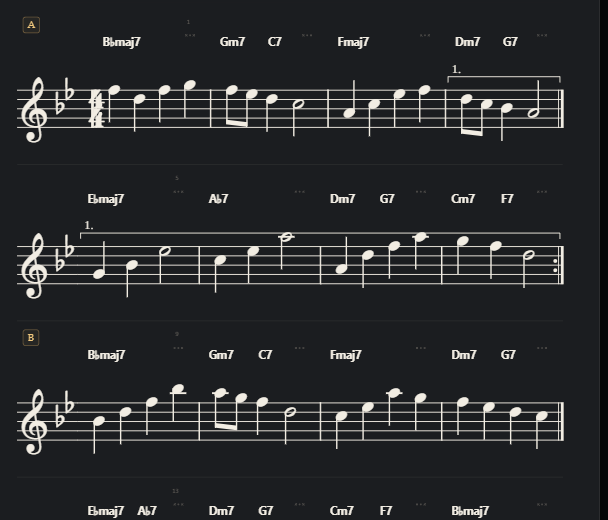
Chords and melody on one sheet. Add annotations with a pen or highlighter, and remove them with the eraser.
How it works
Three steps to the stage
Add your songs, build a setlist, and open it in stage mode.
- 1Add your songsCreate a lead sheet manually or import a playlist from iReal Pro.
- 2Build a setlistArrange the songs in order and set the key and tempo.
- 3Switch to stage modeKeep only the lead sheet and essential performance information on screen.
Your performance, organized
Build a setlist and take it on stage
Arrange songs, keys, and tempos in advance. During the performance, turn pages and follow the setlist without distracting controls.
The product screenshots show the current Russian-language interface; English localization is still in progress.

Your entire set at a glance: song order, keys, and tempos.
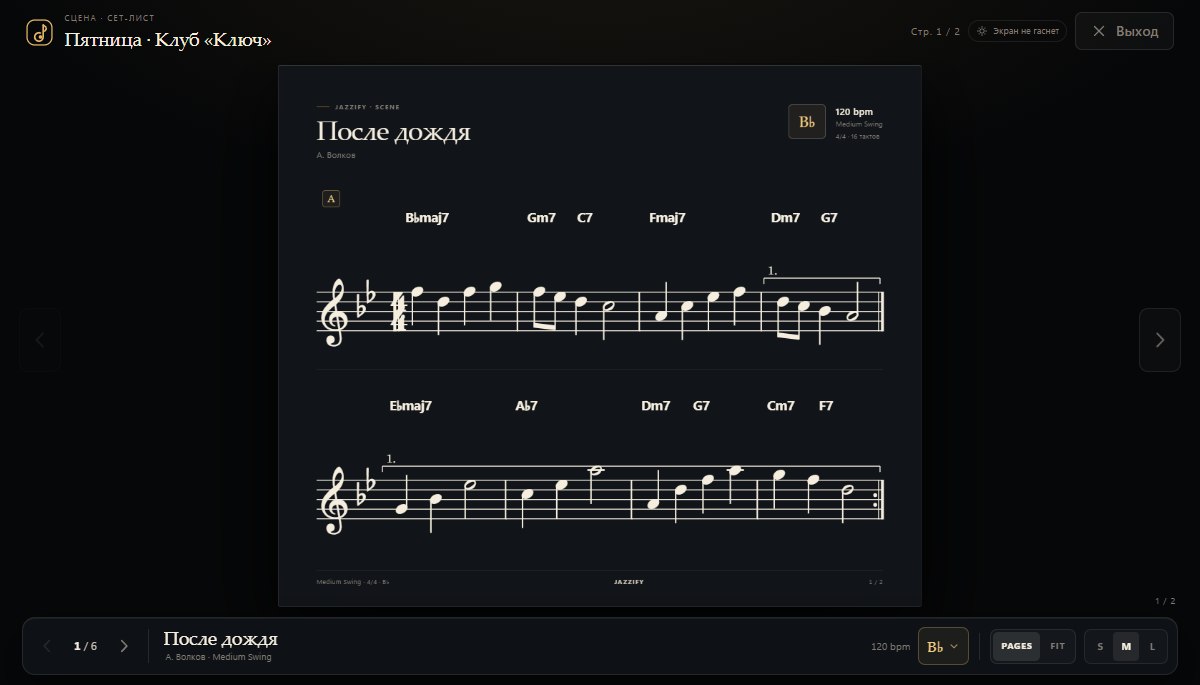
Turn pages and follow the setlist while the screen stays on.
Bring your library
Import playlists from iReal Pro
Export a playlist from iReal Pro and open the file in Jazzify. Your songs will appear in the library as lead sheets.
Import from iReal ProIf the import window doesn’t open automatically, select “Import” in the top-right corner of the app.
- What gets imported
- Chords, song form, and melody when included in the source file. Keys and tempos are preserved too.
- No duplicates
- Importing the same songs again won’t create copies. If a file can’t be recognized, Jazzify shows its name and the reason for the error.
- What to set up in Jazzify
- Arrange the song order in a setlist for each performance.
Installation
Install Jazzify on your device
Use Jazzify in your browser or install it as an app. Add it to the Home Screen on iPad or iPhone, install it through Chrome on Android, or use Chrome or Edge on desktop.
Your device iPad · iPhone Add Jazzify to your Home Screen
- Open Jazzify in Safari.
- Tap Share — the square with an upward arrow.
- Choose “Add to Home Screen” and confirm.
Launch Jazzify from the icon just like any other app. Your data stays on your device.
Your device Android · Chrome Install Jazzify with Chrome
- Open Jazzify in Chrome.
- Tap “Install,” or open the ⋮ menu and choose “Install app.”
- Once installed, the Jazzify icon will appear on your home screen.
If you don’t see the install button, reopen the site or check the Chrome menu.
Your device Computer · Chrome, Edge Install Jazzify on your computer
- Open Jazzify in Chrome or Edge.
- Click the install icon in the address bar, or choose “Install app” from the browser menu.
- Once installed, Jazzify will open in its own window.
In other browsers, you can use Jazzify as a website. Your library is saved in that browser on your device.
Your data
Your music and annotations stay with you
You don’t need an account to use Jazzify. Songs, setlists, and annotations are stored locally on your device and aren’t sent to a server.
FAQ
The essentials
Do I need an account?
No. There’s no sign-in, and all your data stays on your device.
How do I install Jazzify on an iPad?
Open Jazzify in Safari, tap Share, and choose “Add to Home Screen.” You can then launch the app from its icon.
Does Jazzify work offline?
Yes. After the first visit, the app is cached, so your saved lead sheets are available without an internet connection.
What gets imported from iReal Pro?
Chords, song form, and melody when included in the source file. Keys and tempos are preserved. You can arrange the song order in a Jazzify setlist.
What if I don’t see the install option?
On Android, open Jazzify in Chrome and check the ⋮ menu. On desktop, use Chrome or Edge. On iPad or iPhone, install the app through Safari’s Share menu.